There are several ways to document order results. For nonelectronic results, there are three methods: Quick Results, Document Upload, and Custom Forms. Electronic results are automatically available and are linked to the order.
The provider and medical staff use the Order Results page to add a result for an order. Quick Results, Document Upload, Order Result Forms, and Electronic Results are all workflows you may use to add these results. After you add a result to the order, you can mark the result as reviewed.
Laboratory, radiology, consult, and office order results navigate to the same Order Results page.
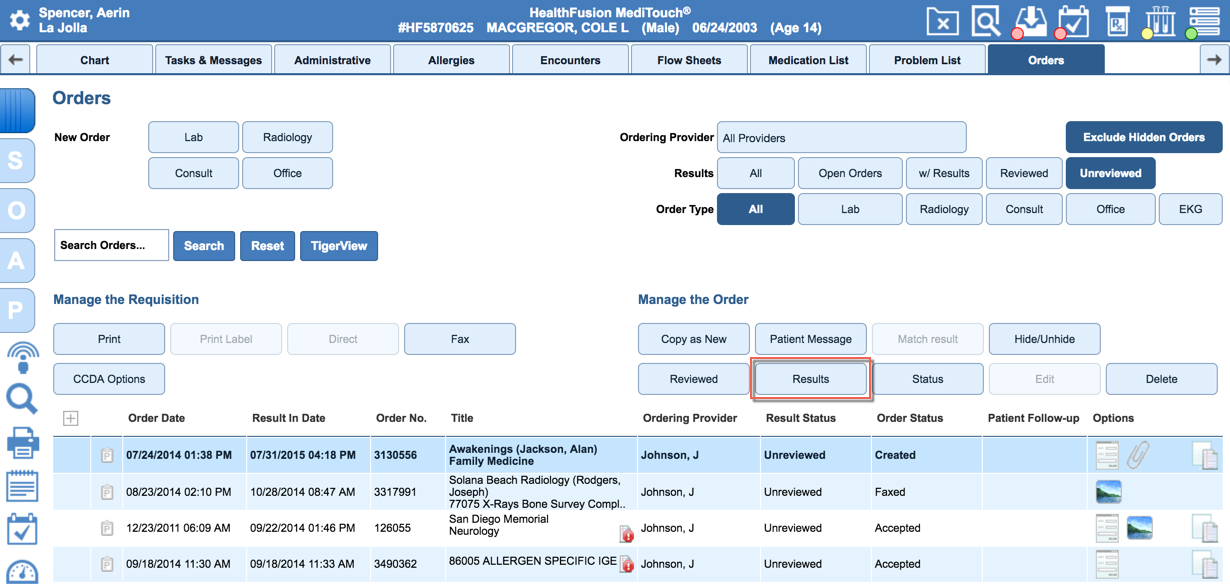
To navigate to the Order Results page, select the desired order row from the Orders page and then click Results.
Quick Results
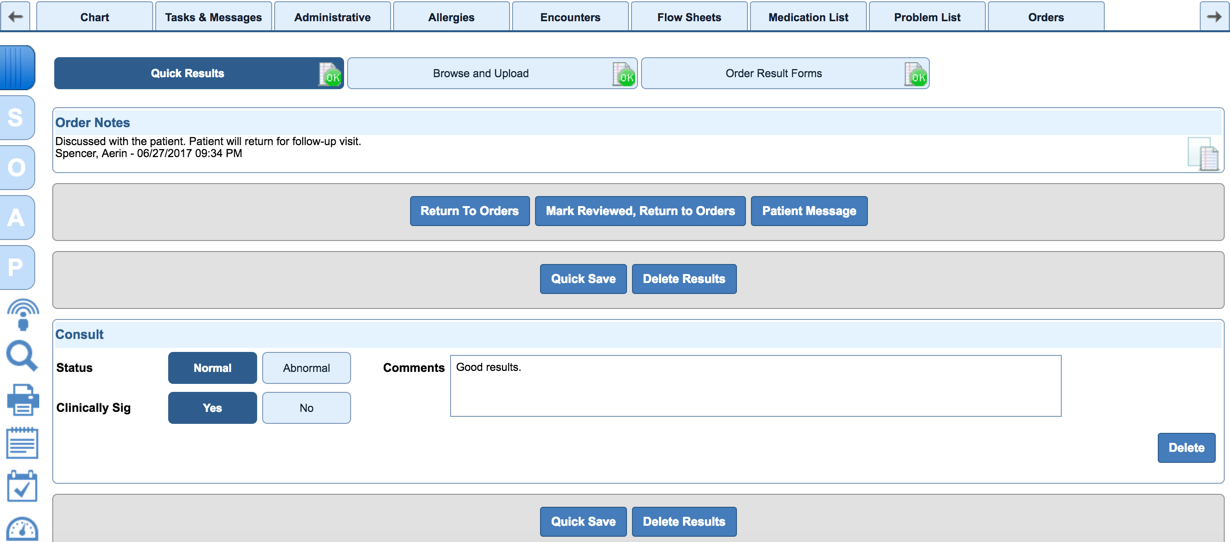
Document quick results:
- Status: Mark the results as Normal or Abnormal. Normal results displays the green OK icon on the Quick Results button. Abnormal results display a red exclamation point.
- Comments: Type comments about the results.
- Clinically Sig: Mark the result as clinically significant.
Browse and Upload
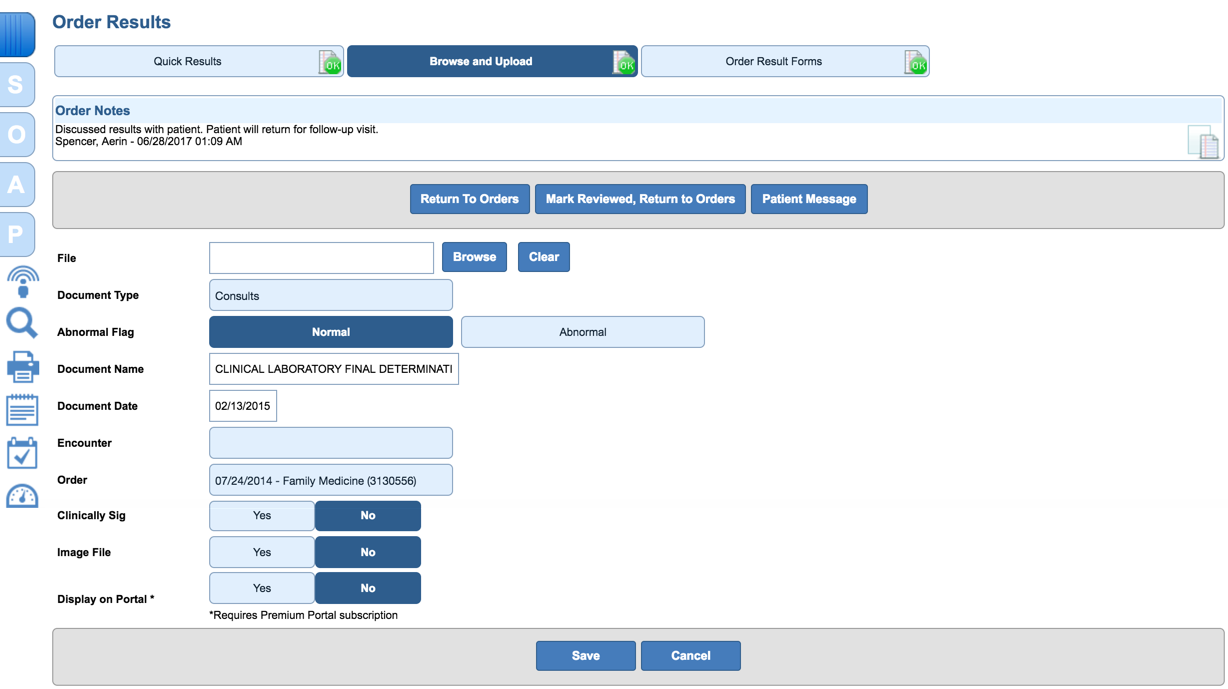
Upload the results document, mark the results as Normal or Abnormal, enter selections, and click Save.
After the document is available, click the document name to review the findings.

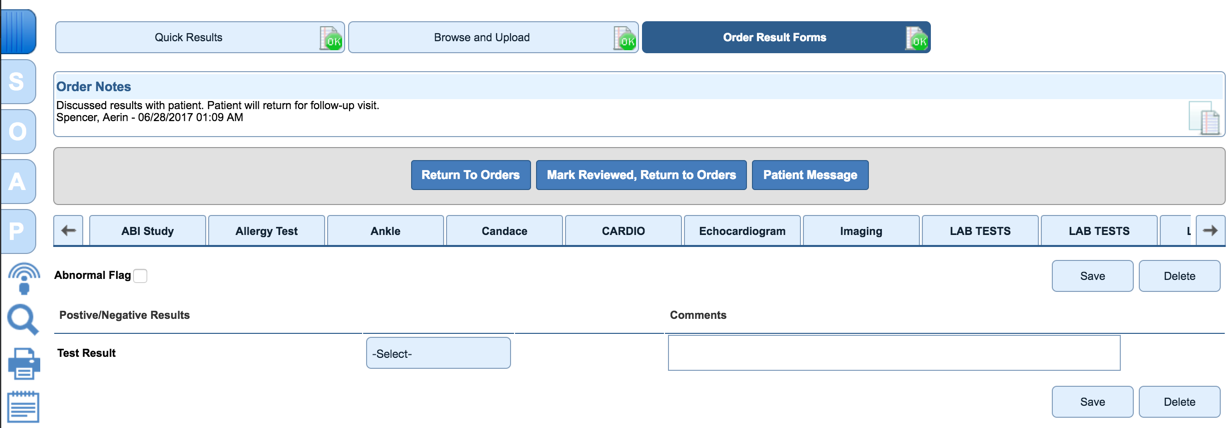
Order Result Forms
This option uses custom forms (created in Administration: Custom Forms). NextGen Office` also offers default custom forms.
Click Order Result Forms and click the preferred custom form for documenting the findings for the administered test.
Electronic Results
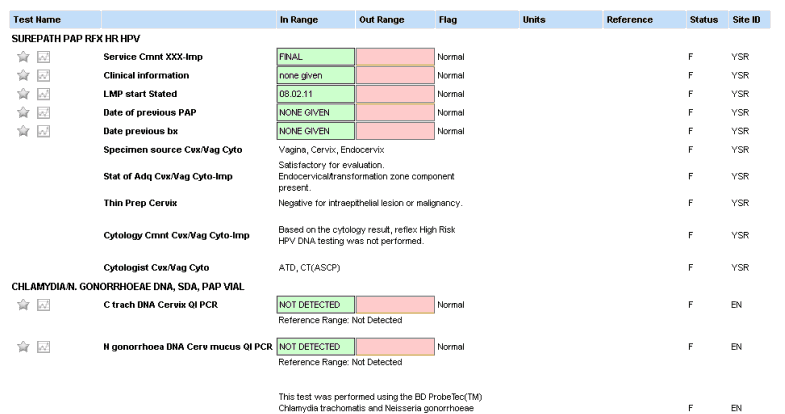
Orders with electronic results are indicated by  in the Options column of the Orders page.
- To view electronic results, select the desired order from the Orders page and then click Results. Each test and related findings are displayed. Abnormal findings are automatically marked.
- If reviewing findings, click Mark Reviewed, Return to Orders when finished analyzing.
Notes
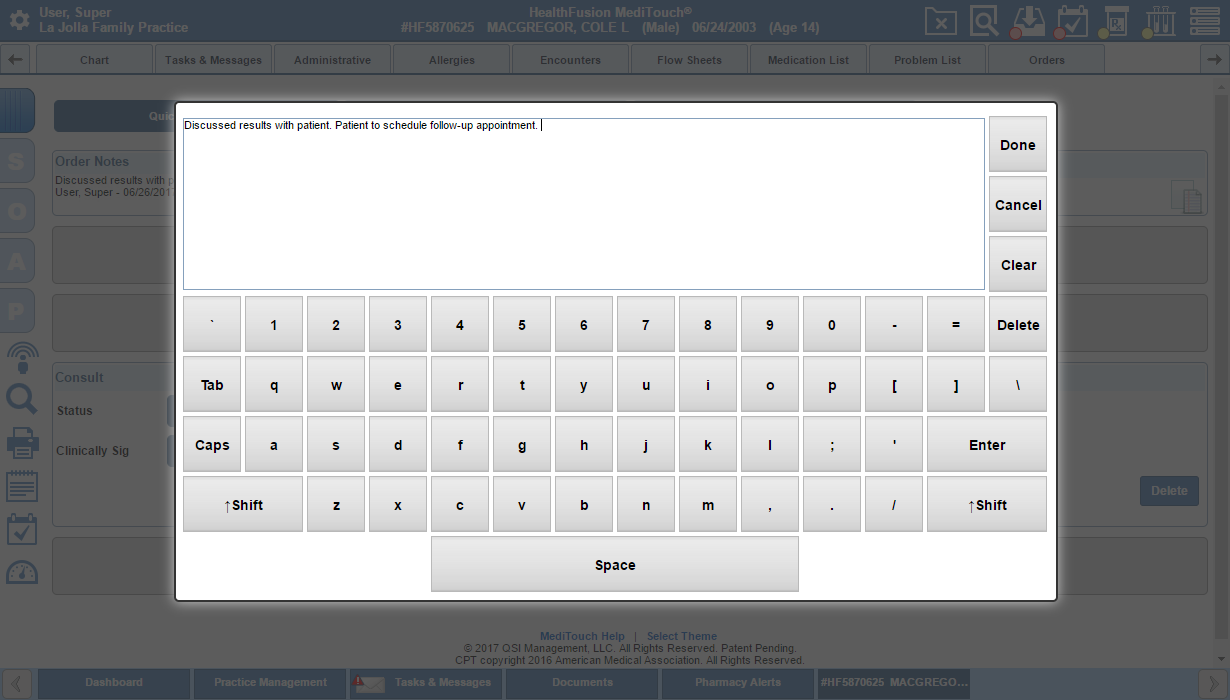
Users may create, edit, and view a note from the Order Results page without navigating to the patient's orders.
- To create or edit a note, click
 .
. - After you have finished typing or editing the note, click Done.
Last Review Date: 08/21/25