This article describes how to resubmit claims with received, finalized, or sent to payer statuses.
Notes
- If any payments were applied to the original claim, those payments remain on the original claim.
- After you start to resubmit a claim that has prior adjudication information, it must be completed. There is no option to save the claim as user hold.
- You must make any necessary changes to the provider, location, or patient prior to resubmitting the claim. Edit the provider and location in Administration: Provider Maintenance and Administration: Locations, respectively. Edit the patient and insurance information in the patient’s chart.
- You cannot resubmit claims with the following statuses: user hold, HF rejected, or HF accepted. You can only edit the current claim.
- To learn how to resubmit claims in accepted status, refer to Resubmit Claims in Accepted Status.
Resubmit a Claim
- Select the claim and click Edit and Rebill
 .
.
The Service Lines tab of the Charge Entry page opens.
Select the Service Lines to Resubmit
If a service line is present in the charge, but not on the resubmitted claim, you submit that service line with the new claim.
- Select the service line's check box.
Note: You must resubmit service lines with insurance balances greater than $0.00.
To delete a service line from the charge, click Delete. Note: Service lines with payments cannot be deleted.
- Enter the changes to the claim.
- Click Create Claim.
You are alerted when you do not select at least one service line or if you manually deselect a service line. If you manually deselect a service line and try to resubmit the claim, make sure that the service line does not have an insurance balance; only patient responsibility is left to be paid.
Service lines cannot be restored from prior claims during resubmission if these service lines have adjustments or patient responsibility posted. To restore these service lines, unapply adjustments and patient responsibility from the original payment ID (refer to Service Line Selection during Claim Resubmission).
Additional Options
On the Service Lines tab, at the bottom of the page, there are some additional options.
Claim Frequency Code
- Appears at the bottom of the Charge Entry page. Use for claim resubmissions.
- Use only when required by the payer. If used incorrectly, it may cause claim rejections.
- Allows for a change to the 2300 CLM05 EDI segment.
- Completing the claim frequency code information fills box 22 (resubmission code) in the CMS-1500 form.
Reverse All Adjustments from the Prior Claim When Resubmitting
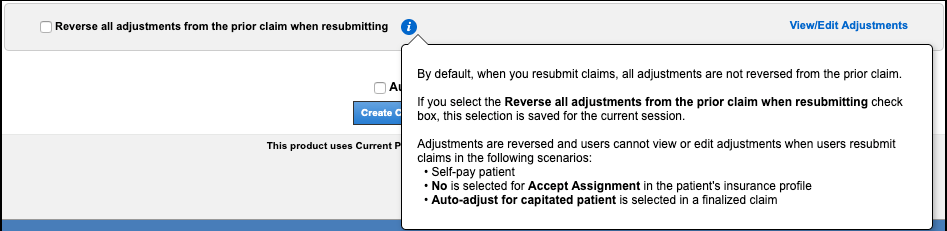
When resubmitting a claim, the Reverse all adjustments from the prior claim when resubmitting check box is not selected by default. When the claim is resubmitted, all prior adjustments are automatically reversed.
When you select the check box, this selection is saved for the current session. The next time you log in, you will have to select the check box again. NextGen® Office PM remembers the selection you chose last so that you can select or clear the check box as you work through your claims.
When you resubmit claims in the following scenarios, adjustments are always reversed and you cannot view or edit adjustments (the View/Edit Adjustments link is disabled):
- The patient is a self-pay patient
- In the patient's insurance profile, No is selected from the Accept Assignment menu
- The Auto-adjust for capitated patient check box is selected in a finalized claim.
View/Edit Adjustments
In some cases, you may not want all adjustments to be reversed. Use this option to view the adjustments for the service lines that are being resubmitted and control the reversal of adjustments.
- To reverse all adjustments for the service line, click Reverse.
- Alternatively, manually update the Copay, Co-Ins (co-insurance), Other PR, or Ins Adj (insurance adjustment) adjudication fields.
- To modify the group and reason code for each reversed adjustment, click Edit Adj.
- The prior adjustments are shown for reference and cannot be edited (labeled as 1).
- The reversed adjustment shows as a negative amount and is categorized with the original group and reason code (labeled as 2).
- To modify the group and reason code (if necessary), click
 . To undo the reversal, click
  .
.
- All transactions that result from the updates made in Resubmission Adjustments are applied to the newly created claim.
- These transactions are recorded in the Activity Log.
See Also:
Service Line Selection during Claim Resubmission
Last Review Date: 10/29/25