You can export order logs as an Excel® file for a selected time range from the Orders Dashboard.
- In NextGen® Office EHR, select the Orders
 icon from the top navigation bar.
The Orders Dashboard opens.
- Select the start and end dates.
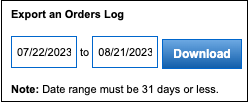
- Select Download.
The order log is downloaded.
Sources of Order Log Data
| Excel® Column Name | NextGen® Office EHR Page |
|---|
| Patient Name | Order Status |
| Patient Chart No | Order Status |
| Ordering Provider | Order Status |
| Order Type | The order type selected in the patient chart or in an encounter (lab, radiology, consult, office test). |
| Urgency | Order Status |
| Referred To | Orders
- For a lab order, your menu selection below the Electronic and Non-Electronic buttons.
- For a radiology order, the facility selected in the Select Facility and Provider pane.
- For consult and office test orders, the facility or provider selected in the Select Facility and Provider pane.
|
| Referral Reason | Order Note field in Order Status. If you do not enter a note when you create the order, the cell in the order log is blank. |
| Test Name | Selected test panels in Orders. |
| Order Date | Order Status |
| Appt Date | Order Status |
| Due Date | Order Status |
| Result Date | Result In Date field in Orders Dashboard |
| Result Status | Orders Dashboard |
| Appt Comm to Patient | Patient Notified of Appointment Via section in Orders |
| Normal/Abnormal | Selected status in Order Results |
| Result Notification to Patient | Patient Notified of Result Via section in Order Status |
| Overdue | Depends on the due date in Order Status |
| Follow Up Note | Notes field in the Follow Up with Referred To Provider section in Order Status |
| Test Order ID | Order No. field in Orders |
See Also:
Orders Dashboard
Order Status
Last Updated: 4/20/25